Showing posts with label Colour systems. Show all posts

Wednesday, 20 October 2010

InDesign 20.10.10

8 mistakes 

1. No bleed on the first page 
2. Two spot colours not in use
Select all unused of the swatch palette


Images need to be the right size 
Resolution has to be 300 dpi
Needs to be in CMYK 
File format needs to be correct, PDF or TIF cannot be a jpeg

3. Tree silhouette- link missing 
4. Bird 3 is in RGB not CMYK 
5. Blue swatch is also in RGB not CMYK
6. The resolution for bird 1 is 72 dpi  not 300 
7. Scale of bird 5 isn't 100% because the size has been changed in InDesign 
not in Photoshop 
8. Back cover has been filled with the registration colour so is over 
the limit
Separations preview - ink limit- anything over the limit will show up red.


Links palette- click on the pencil to edit the original image for example if you need to change the size of the image or the resolution

To tell it what program to open with when you click on 
the pencil 
file folder - click on the image- get info- open with 
change to photoshop


Change to percentage when editing scale in photoshop


Image 3 saved in RGB- Edit it on photoshop
Mode- CMYK


Image size- cannot make the resolution higher. Need to get a new image 
As soon as you save it, it will immediately update on InDesign 

If you do not have the original illustrator file it will print very pixelated. If you do have the file it will print exactly the same as it looks on illustrator 
You need to have all the image files present

When finished on InDesign 
File- package 
Gather together everything necessary for the file to work 

Links and images - save
can add notes i.e do not print spot colour... 
'Preflight'

Legality warning will pop up 
You can give the printers a copy of your adobe font. It is now legal

Will now have a copy of all images, fonts, etc and can now be sent to print

or.. can save as a PDF 

This will embed all the images, fonts etc into one file 

File- PDF presets- Press quality 

Smallest file size- If you want to send it to your client to check over will look good on screen but not when printed 

Export
Marks and bleed 
Use documented bleed settings 

PDF will be smaller than package file 


Wednesday, 13 October 2010

InDesign workshop

InDesign CS5 workshop

Open new document
Bleed No white lines etc when cutting out
Standard bleed amount 3mm

Facing pages- DPS (double page spread)
will it be bound as a book?

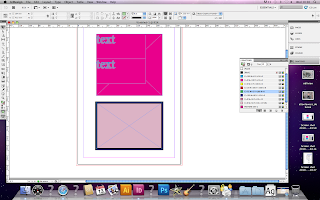
Always apply colour in a frame or something contained in a frame
Swatches palette similar to illustrator


You can add swatch colours created in illustrator and photoshop


Swatches palette
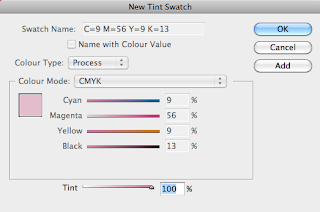
Can change the tint- Just change the percentage
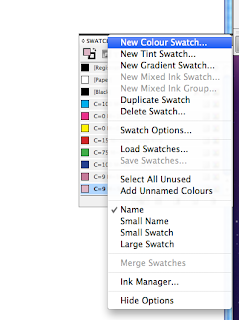
New tint swatch
Can't change the percentage of CMYK just the percentage of the tint

As soon as you enter colour value it will change from process colour to spot colour

Click over something and hold the alt key and drag to duplicate

Windows- output- Separations preview


5 printing plates
Printed on acetate to see how it will print- like screen printing


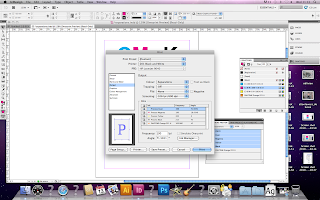
Print options
Set up- page position- Centred
Marks and bleed- Crop marks
Registration marks(again like screen printing)
Page information- Need to know which one will print Cyan, Magenta etc
To print colour separations
Output-Colour composite CMYK change to separations
Click on the small colour box to chose which colours to print
Will print a 5 page document Cyan, Magenta, Yellow, Key and the spot colour
Can now be used for printing plates or screen printing

Swatch Palette- select all unused

Reference number and colour will be printed at the bottom of the page

Halft tone screen, image tiny dots

Window- output- Attributes- overprint fill

Trapping
Look for the lightest colour apply stroke to type same colour as background

Attributes palette- Overprint

Wednesday, 6 October 2010

Design for print

Software workshop- Photoshop

Resolution 300 dots per inch for commercial use

Lab colour

Bitmap- Image that only contains black or white pixels

CMYK- For commercial use

8bits per channel- Measure of information in each pixel

A lot of things you can't do on CMYK setting on photoshop default setting is RGB, same with scanner

RGB is capable of showing a wider range (Gamut) than CMYK
It's best to work in RGB, when changed to CMYK the colour will change and become a lot duller and less vibrant

When working in InDesign it automatically converts to CMYK

View- Gamut warning
A grey layer will appear on the colours that will not print in CMYK mode

Image- Adjustments- Hue and saturation
De saturate will adjust it to be more in gamut range
The grey overlay from the gamut warning will be reduced

or..
Image- Adjustments- Replace colour
Select part of the image, change fuzziness for amount of image

View- Proof colours
Cannot create out of gamut range colours
Best of both RGB/8/CMYK
What ever colour you see on screen is the colour that will be printed
Last thing you do Image- Mode- CMYK
Window- Swatches
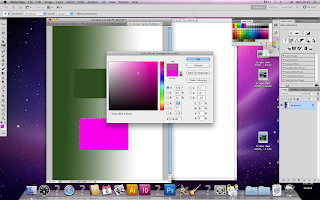
On the colour swatches,c lick on the warning triangle to take you to the nearest printable colour
When you put the gamut warning on this colour shouldn't change

To delete swatches hold alt and click on the colour

Press 'D' on the keyboard to switch foreground and background colours back to black and white
Press 'X' to swap them around
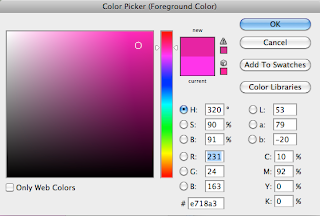
Choose colour- Make sure its a printable colour, add to swatches

Eye dropper tool- Top half new colour, bottom half of circle old colour. This colour will become the foreground colour. Click on the background of colour swatch to add to swatches

Save swatch, drop down menu, right of the swatches panel- Save swatches (Same as in Illustrator)

When you use spot colour it is the same on the screen as when it prints. Its cheaper to use as you only use one printing plate rather than four for CMYK.

Swatch palette
Spot colour library
Click on the pantone colour, it is loaded as foreground colour. Document is RGB, change to CMYK, it will now need four printing plates so negates reason for using spot colour.

Duotone image
Image needs to be grayscale
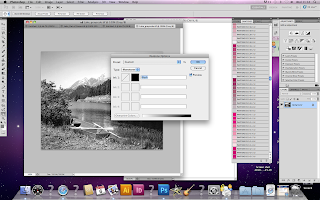
Image- Mode- Duotone

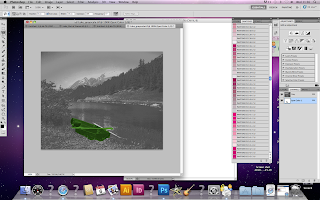
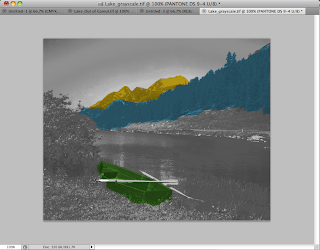
Click on the black square to choose a spot colour to replace the black
Colour libraries to pick a spot colour
Type in pantone ref no.
Save as PSD file
When opened in InDesign the spot colour will be there using its unque ref no.

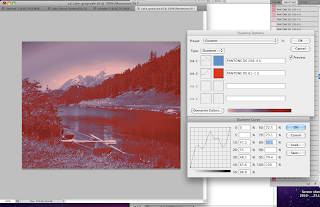
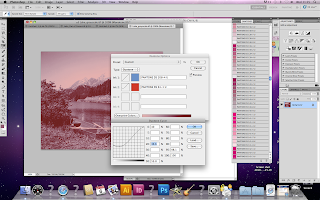
Duotone options
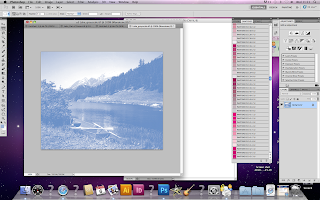
Type- Duotone
Ink no. 2 becomes activated can change second spot colour
Now have 100% of each colour
Can change percentage using the curves

Chanel palette
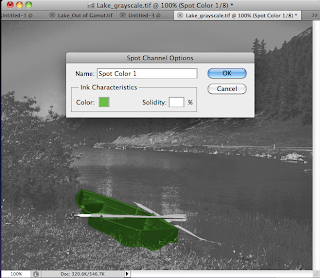
New spot channel
Channel is in black and white

Solidity- Transparency of the colour

You cannot create tints to spotcolour on Photoshop like you can on Illustrator


Monday, 4 October 2010

CS5 Illustrator Workshop

Colour swatches

Clear swatch palette, click colour(s) and drag to the bin to delete.

Choose colour, create swatch. Double click on it and click on 'Global', add tint colour guide, create new swatch.

Process colours CMYK
Spot colours- A colour that is not a mix of CMYK.

Own printing plate- Ready mixed ink.

Colours you can't create with CMYK i.e metallic colours, fluorescent colours.

Branding colours always needs to be the same.

Cost
Spot colours can be cheaper than CMYK as four printing plates have to be used. The more plates the more expensive. Spot colour only requires one plate.

Spot colours on illustrator- Open swatch library- Colour books.
Pantone solid uncoated- Small list view, gives you names of spot colourand unique reference number.

Show find field- Type in reference number. Double click to addto swatch palette.

Pantone process uncoated will be printed as CMYK.

For a varnish use spot colour but specify to printer not to print that pantone colour.

Save swatch library AI to access from any Illustratorfile.

Save a s ASE (Adobe suite exchange) tints will not be open and will need to be recreated in other programs.

In other programs such asInDesign click on swatches- Load swatches- Find swatches, Open.


Colour systems for the print process

Print vs screen

Assigning colour to adjustable document.

Subtractive
Screen

Additive
Print

CMYK vs RGB

RGB-Image on screen

Image view gamut
A typical CRT gamut.
The grayed-out horseshoe shape is the entire range of possible
chromaticities. The colored triangle is the gamut available to a typical computer monitor; it does not cover the entire space. The corners of the triangle are theprimary colors for this gamut; in the case of aCRT, they depend on the colours of the phosphors of the monitor. At each point, the brightest possible RGB color of that chromaticity is shown, resulting in the bright Mach bandstripes corresponding to the edges of the RGB colour cube.


RGB red/green/blue- screen
Duotone- two colours, print with continuos tone.
Spot colour- One or more specially mixed colours.

RGB image- Image view- Gamut reading- to see the image in CMYK

In offset printing, a spot color is any color generated by an ink (pure or mixed) that is printed using a single run.
The widely spread offset-printing process is composed of four spot colors: Cyan, Magenta, Yellow, and Key (black) commonly referred to asCMYK. More advanced processes involve the use of six spot colors (hexachromatic process), which add Orange and Green to the process (termed CMYKOG). The two additional spot colors are added to compensate for the inefficient reproduction of faint tints using CMYK colors only. However, offset technicians around the world use the term spot color to mean any colour generated by a non-standard offset ink; such as metallic, fluorescent, spot varnish, or custom hand-mixed inks.

Specially mixed colours- As apposed to a result of a CYMK or RGB mix.
Mono- One colour, like greyscale (Monochrome)

Hexographic Print- Six colours

Prints different on shiny coated paper than on matte.